StandBy Mode: Big Clock Widget
- 4.4
- Rating
- 100.00K
- Installs
- Free
- Price
 Analysis by App-foxy
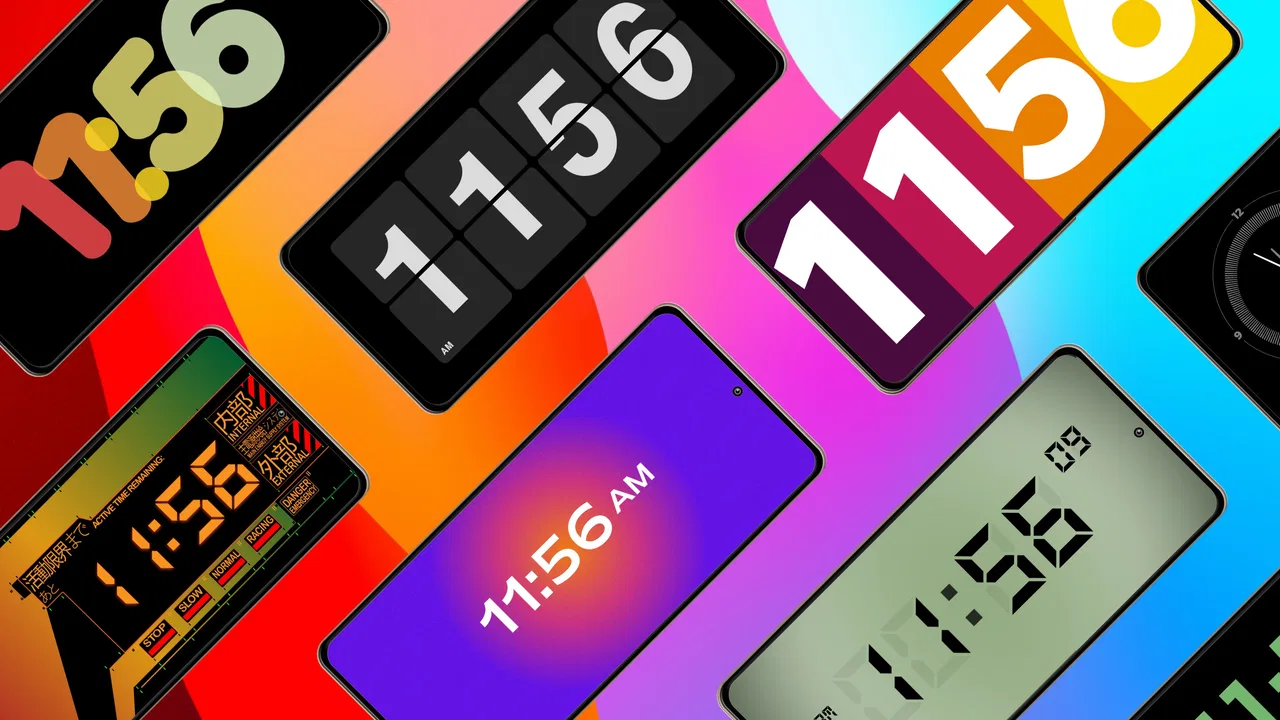
I installed StandBy Mode Always On Display because I wanted to see whether an Android phone could become a useful bedside or desk display without turning the experience into a complicated customization project. The app sits in the beauty category, but its appeal is really practical as well as visual: it offers standby clock widgets designed to give your device an iOS-inspired standby look.
My first impression was that it is aimed at people who enjoy changing the feel of their phone rather than replacing the entire Android interface. The idea is simple. Instead of leaving a normal lock screen or a blank charging screen visible, you can use a clock-focused presentation that makes the phone look more intentional when it is resting nearby. That makes it especially interesting for a nightstand, work desk, kitchen counter, or any place where I occasionally glance at the phone without picking it up.
It is a free app from MAA FOR APPS, with an Everyone content rating. The current version is 3.1.7, and it runs on Android 6.0 or later, so the compatibility range is broad enough to include many older devices. Its average rating is 4.4 from around 3.9 thousand ratings, while the app has passed 100 thousand installs. Those figures suggest that the concept is easy for many people to understand, although they do not tell me whether every phone will deliver the same visual result.
You May Also Like

 Blood Strike: 2.5 Anniversary
Blood Strike’s Loadouts Turn Every Drop Into a Tactical Gamble
A close look at Blood Strike’s custom loadouts: how fast access to signature weapons reshapes its battle royale rhythm, rewards preparation, and narrows the gap between fights.

 Pandora - Music & Podcasts
Pandora’s Music Is Easy to Start, but Harder to Recover
Pandora’s strength is its low-effort path from a seed to a station. Its weak spot is how much confidence it asks you to place in connection, setup, and quiet recovery.

 8 Ball Pool
 Is Built on Rivalries, Rematches, and Routine
A close look at the rivalries, rematches, shared routines, and unanswered safety questions that turn a quick pool match into a persistent mobile community.

 Samsung Music
’s Quiet Strength Is Playing What You Already Own
Its reach comes less from spectacle than from dependable access to a personal library. That simplicity is both the app’s strongest retention engine and its ceiling.

 AccuWeather: Weather Radar
AccuWeather Review: A Quick, Clear Forecast for Everyday Decisions
For everyday plans, the best forecast is the one you can understand quickly. AccuWeather makes rain timing, radar, and local conditions easy to act on, with a few trade-offs.

 Hill Climb Racing
Why Hill Climb Racing Still Turns Crashes Into One More Run
A tiny car, a bumpy hill and one more upgrade: Hill Climb Racing keeps resurfacing because its simple chaos makes every near-miss feel personal.
More From Our News Desk



How the standby clock idea works in everyday use
The central experience is built around standby clocks and widgets. I think of it less as a full always-on display replacement and more as a visual layer for moments when the phone is being used as a small information screen. That distinction matters. If you expect a complete system-level redesign, you may find the app more limited than a dedicated lock-screen replacement. If you simply want a more attractive clock presentation, its purpose is much clearer.
A realistic use case is charging the phone on a desk while working. I can leave the device positioned where I can see it and use the standby-style clock as a quick visual reference. I do not need to unlock the phone just to check the time. The same approach makes sense beside a bed, where a large clock can be more convenient than reaching for a separate alarm clock or waking the usual phone interface.
There is also a style benefit. Android phones often differ greatly in their default lock screens, and some manufacturers add their own visual treatments. This app gives the phone a more deliberate, iOS-inspired appearance without requiring me to change launchers, icons, or the rest of the home screen. That separation is useful: I can keep my familiar Android setup for normal use while applying the standby look only when the phone is resting.
In practice, the best results depend on how the phone is placed and when I expect to look at it. A standby clock is most useful when the device remains visible and relatively stationary. It is less useful if the phone is usually face down, kept in a pocket, or placed across the room. That sounds obvious, but it is an important value question: the app improves a specific moment in the phone’s routine rather than every part of daily use.
What I found useful beyond the basic clock
The widget approach gives the app more flexibility than a single fixed clock screen. I can think of the layouts as visual choices for different environments. A restrained clock can suit a bedroom, while a more decorative arrangement may work better on a desk. The ability to treat the standby screen as part of the room’s atmosphere is one of the reasons this feels more like a beauty app than a purely technical utility.
One practical tip is to decide where the phone will live before choosing a design. A layout that looks appealing while holding the phone may be harder to read when the device is flat or angled on a stand. I would test the selected clock from the distance and angle I actually use, not just judge it while browsing the app. This is a small step, but it prevents the common disappointment of choosing a stylish screen that is not comfortable to read.
Another useful workflow is to choose one design for nighttime and another for daytime viewing. A bedside display should be calm and easy to read without demanding attention, while a work-desk display can be more visually distinctive. Treating the app as a context-based accessory makes more sense than searching for one perfect appearance for every situation.
I also recommend checking the result after the phone has been left alone for a while. The important question is not only whether the clock appears attractive immediately, but whether it remains useful when the screen is dimmer, the room is darker, or the device is viewed from the side. This is where the app’s practical value can differ from its first visual impression.
Free access and what that means for value
The app is free, so the basic decision is straightforward: there is no purchase price standing between the reader and the standby-clock concept. That makes experimenting with it relatively low risk. I can try the visual style, place the phone in a real setting, and decide whether it earns a permanent place in my routine without committing money first.
Free access is especially valuable here because the app solves a preference problem rather than an urgent one. I do not need a standby clock to operate the phone, and many Android devices already provide some form of clock or lock-screen display. The app earns its place by making that experience more attractive or more convenient. Being free makes it easier to judge that benefit on its own terms.
I would still separate “free to try” from “guaranteed to suit every device.” Android hardware, manufacturer software, screen behavior, and charging habits vary considerably. A design that feels natural on one phone may be less convincing on another. The absence of a purchase cost reduces the financial downside, but it does not remove the time needed to test the setup properly.
For me, the strongest value is therefore visual and situational. I am not paying for a broad productivity suite or a replacement for every display function. I am getting a way to make a resting phone look and feel more like a dedicated standby clock. That is a modest benefit, but the free price makes it easier to appreciate if that modest benefit matches my habits.
Where it compares well with ordinary Android alternatives
The usual alternative is the phone’s built-in lock screen or always-on display, assuming the device offers one. That option has an obvious advantage: it is already integrated with the system and usually requires less setup. It may also be better for people who want the most direct access to notifications, battery information, or manufacturer-specific controls. If my priority were system integration rather than appearance, I would start with the built-in option.
StandBy Mode Always On Display is more appealing when the default presentation feels too plain or does not resemble the standby style I want. Its focus is narrower, but that focus is also its strength. Instead of asking me to redesign the whole phone, it concentrates on the resting display and the visual role of the clock.
A third alternative is a separate bedside clock. Hardware has advantages: it is always dedicated to the job, does not compete with phone notifications, and does not depend on the phone remaining available. On the other hand, using the phone means I already have a screen, and the app lets me try the concept without buying another object. For a temporary setup, a guest room, or a desk where I want a coordinated look, the app is the more convenient experiment.
There is also a difference from a full launcher or lock-screen customization app. Those tools can change far more of the phone, but they often require more decisions and may affect the experience every time I unlock the device. This app is better for someone who wants a focused change. I can keep my normal Android workflow and use the standby presentation only when the phone is being displayed.
Trade-offs I noticed while judging the experience
The biggest trade-off is that visual charm does not automatically equal practical superiority. A standby clock can make the phone look polished, but it may also encourage me to leave the screen visible more often. Depending on my habits, that can become a distraction rather than a convenience. I would use it in places where a visible clock is genuinely helpful, not simply because the design looks nice.
Readability is another consideration. A decorative widget may be attractive in the app’s selection view but less comfortable in a dim room or from a distance. The right choice is the one that communicates the time quickly. I would favor clear contrast and an uncluttered layout for the bedside, even if a more elaborate design initially catches my eye.
Compatibility is worth considering as well. The minimum operating-system requirement is Android 6.0, which is reassuring for older phones, but software support alone does not guarantee identical behavior across brands. Manufacturers can handle lock screens, charging displays, background activity, and screen wake behavior differently. I would treat the app as a visual customization layer whose exact routine may depend on the phone around it.
There is also a trade-off between using the phone as a clock and keeping it available for normal tasks. If I rely on the device for alarms, notifications, or emergency access, placing it in a decorative standby role may not be ideal. A separate clock remains better for anyone who wants the phone out of the bedroom or wants to avoid the temptation to check messages at night.
Finally, the app’s appeal depends heavily on personal taste. Someone who prefers the cleanest possible Android interface may see the iOS-inspired look as unnecessary. Someone who enjoys visual changes may find the same focus refreshing. I would not recommend it as a universal upgrade; I would recommend it to people who specifically want this kind of standby presentation.
Who is most likely to get real value from it
I think the best audience is made up of Android users who like the appearance of iOS-style standby screens but do not want to switch platforms or rebuild their entire phone setup. The app offers a way to borrow that visual idea while keeping Android’s familiar home screen, apps, and daily workflow.
It also suits people who use their phone as a desk companion. If I work near a charger, keep a phone stand beside my keyboard, or like having a visible clock while cooking, the standby display can turn an otherwise idle device into something useful. The value is strongest when the phone is already in a visible location.
Older Android phones may also be worth trying because the minimum system requirement reaches Android 6.0. That does not promise the same experience on every model, but it means the app is not restricted to only recent hardware. For someone with an unused compatible phone, installing it could be a simple way to create a secondary clock display.
I would be more cautious if the phone has a small screen, a distracting default charging behavior, or a placement where the display cannot be read comfortably. I would also skip it if I want advanced smart-home information, a dedicated alarm-clock system, or deep integration with the phone manufacturer’s settings. Those needs go beyond the app’s focused standby-clock purpose.
People who dislike visible screens at night should probably avoid making this part of their bedroom routine. The app can make a phone look attractive, but a dark room and a bright device are not always a good combination. In that situation, a conventional alarm clock or a fully dimmed system display may be a better fit.
My verdict after using it as a visual phone upgrade
StandBy Mode Always On Display is a focused, free beauty app that makes sense when I want my Android phone to look more like a deliberate standby display. Its value does not come from replacing every built-in phone function. It comes from improving a narrow but recognizable moment: when the device is resting nearby and I want a clock that feels more polished than the default presentation.
The free price is the main reason I consider it worth trying. There is no purchase decision to justify before I know whether the standby style fits my phone, room, and habits. I would install it, choose a readable clock, place the device where I normally charge it, and use that arrangement for a real evening or work session before deciding whether it stays.
My recommendation is positive, with realistic expectations. Choose it if you want an iOS-inspired standby appearance, enjoy visual customization, and have a practical place to keep the phone visible. Skip it if you want a fully integrated system display, advanced clock hardware, or a phone that disappears completely at bedtime. For the right user, the strongest benefit is a small visual change that makes an idle phone feel useful again.
MAA FOR APPS has kept the idea easy to understand: turn the resting Android device into a clock-focused display without asking me to change everything else. The result is not essential, but it is pleasant and potentially useful. With an average rating of 4.4 and more than 100 thousand installs, it has clearly found an audience for that concept. I would recommend giving it a practical trial rather than judging it only from screenshots, because the real question is whether the standby clock improves the place where I actually leave my phone.
FAQs for StandBy Mode: Big Clock Widget
01What is StandBy Mode Always On Display?
StandBy Mode Always On Display is a feature that allows your device to display essential information such as time, date, notifications, and battery status even when the screen is off. This feature enhances convenience by providing quick access to important details without needing to unlock your device.
02Does StandBy Mode Always On Display significantly drain battery life?
StandBy Mode Always On Display is designed to be energy efficient. It uses minimal power by illuminating only the necessary pixels to display information. While there is a slight increase in battery usage, it is generally optimized to ensure that the impact on battery life is minimal.
03Can I customize what information is shown on the Always On Display?
Yes, most devices with StandBy Mode Always On Display allow customization. Users can typically select which widgets or notifications are shown, adjust brightness, and sometimes even change the style or color of the display to better suit personal preferences and needs.
04Is StandBy Mode Always On Display available on all devices?
StandBy Mode Always On Display is not universally available on all devices. Its availability depends on the specific model and manufacturer. Most modern smartphones, particularly those from leading brands, offer this feature, but it's always a good idea to check your device's specifications to confirm.
05How can I enable or disable StandBy Mode Always On Display?
To enable or disable StandBy Mode Always On Display, navigate to your device's settings, usually under the display section. From there, you can find options to turn the feature on or off and customize its settings. The exact steps may vary slightly depending on your device's make and model.
Pros
- Customizable display options.
- Low battery consumption.
- Easy to set up and use.
- Supports notifications display.
- Enhances phone aesthetics.
Cons
- Limited widget variety.
- May cause screen burn-in.
- Not compatible with all devices.
- Requires background permissions.
- Ads in free version.

StandBy Mode: Big Clock Widget
Gallery